
How to Preview a Tattoo on Your Own Skin
The hard part of choosing a tattoo is imagining it on your own body. Here is how to preview one from a photo, and why the stencil still decides.
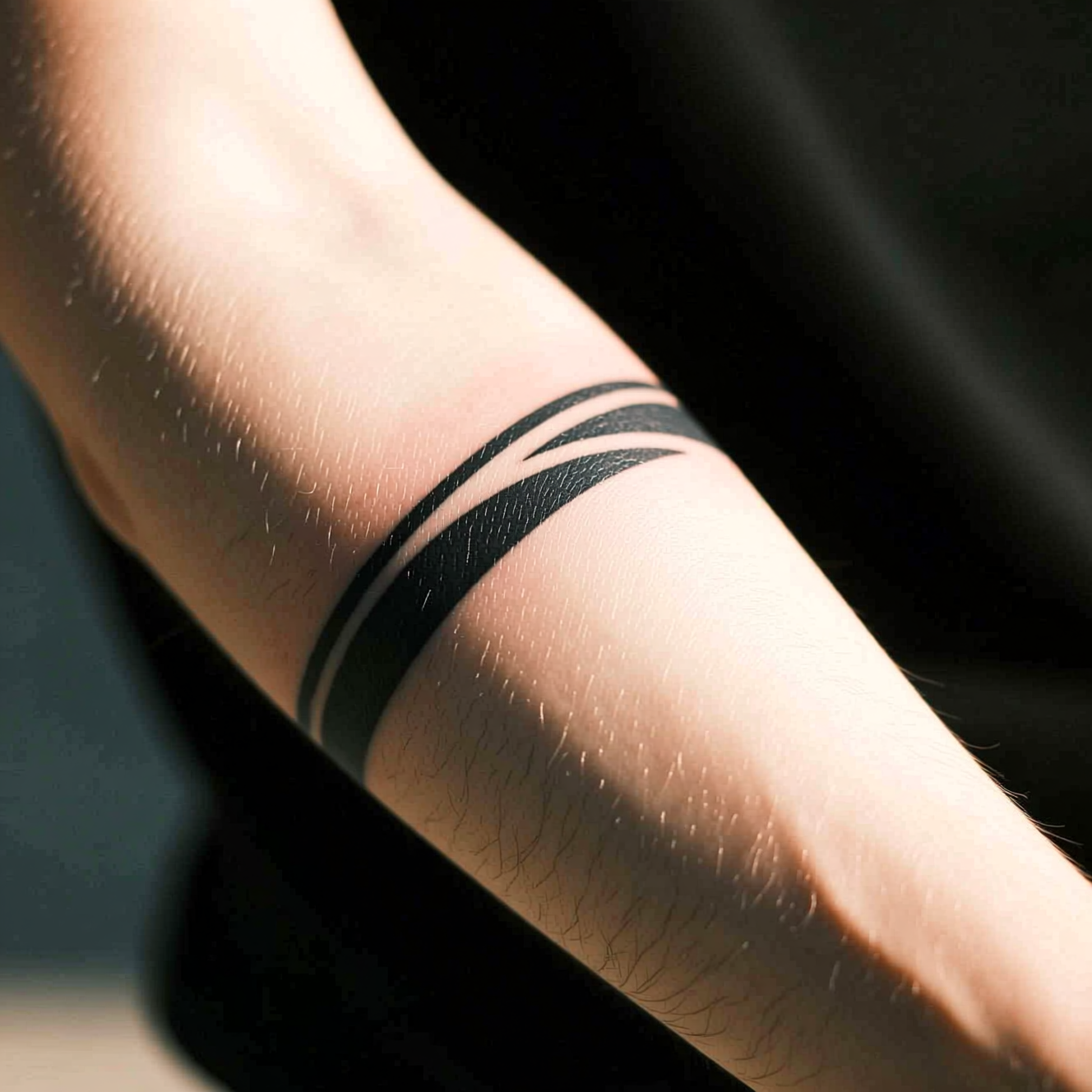
To preview a tattoo on your skin, upload a photo that shows the body part clearly to an AI tattoo preview; it draws ink that follows your contours and the photo's lighting. Use it to judge placement and size before you book, not as a replacement for your artist's stencil.
Why a flat design misleads
A design on paper is flat, evenly lit and facing you. Your forearm is none of those. Skin curves, so a design wraps and part of it turns out of view. It sits under the light of the room, so one side is darker. And it moves with muscle. The thing people get wrong when choosing is not the artwork, it is how big it should be and where on the limb it should sit. A preview on your own photo shows exactly that.
Take the right photo
- Show the whole area with skin around it: the full forearm, not a close-up of the wrist.
- Hold the limb the way you normally would. A flexed pose shows a tattoo you will rarely see.
- Use soft, even light and bare skin: no sleeves, watch straps or jewellery over the area.
Doing it in Reelina
Open Tattoo Preview, upload the photo and generate. The instruction asks for a realistic, well-designed tattoo on visible skin that follows the body's contours and lighting so it reads as ink rather than a sticker, and it pins your face, pose and identity.
You don't upload a design: each run proposes its own, in a tasteful modern style. So use it to compare placements and scale across several runs, then take the versions you like to your artist as a starting point.
FAQ
Can I upload my own tattoo design? Not in the one-tap app. Each run proposes a design; generate a few and compare placement and size.
Is the preview accurate enough to decide from? It shows how ink sits on that part of your body under that light, which is the hardest part to imagine. It is not a substitute for a stencil from your artist.
Can it remove a tattoo from a photo? No. Use Remove Unwanted for that.
Does it change anything else in the photo? No. Face, pose and identity are kept; only the tattoo is added.
Try it yourself
Every model on one coin balance, straight in your browser. No install, no watermark.
Start creatingKeep reading
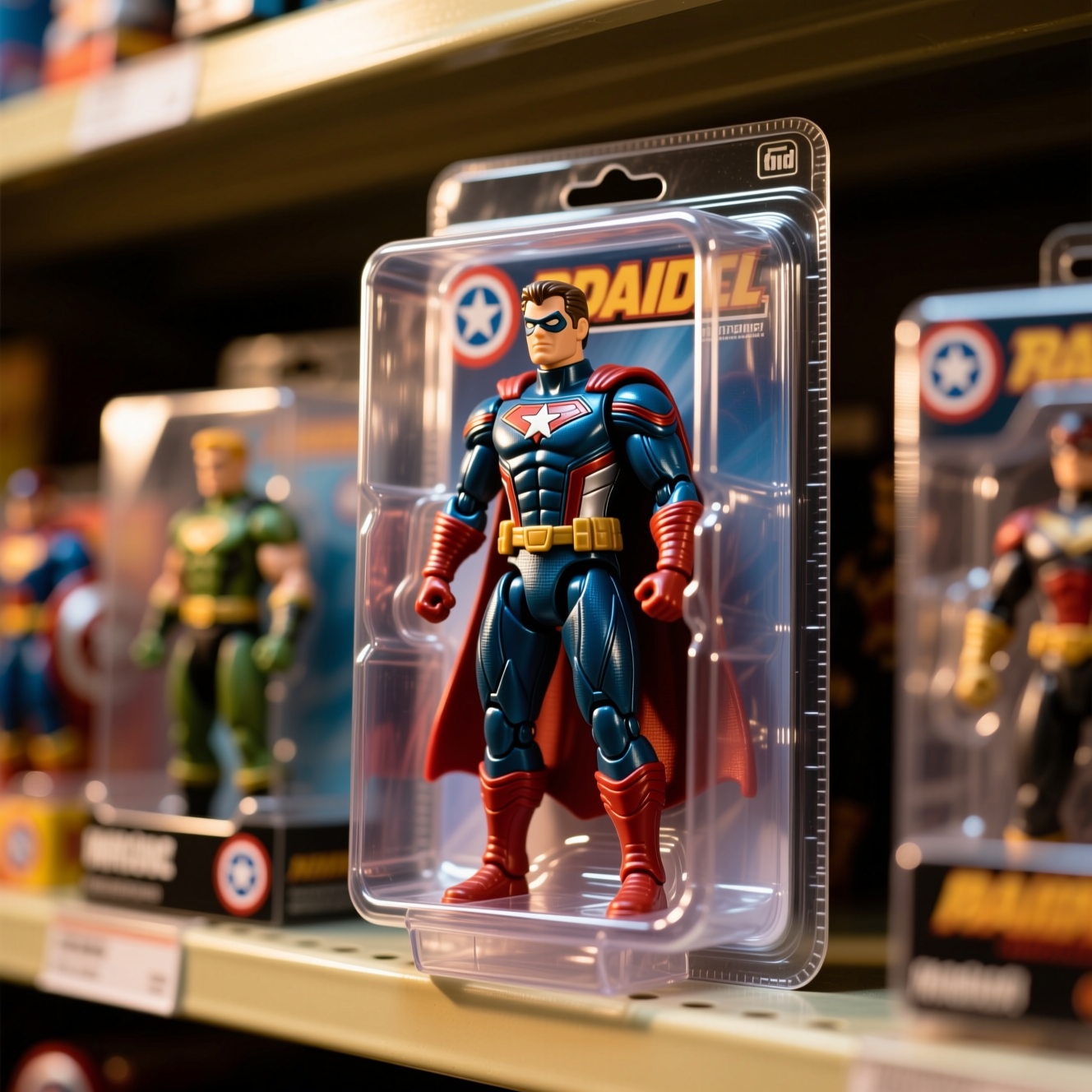 How to Turn Yourself into an Action FigureThe boxed-toy picture works when the packaging looks manufactured and the face is still yours. Here is how to get both from one photo.
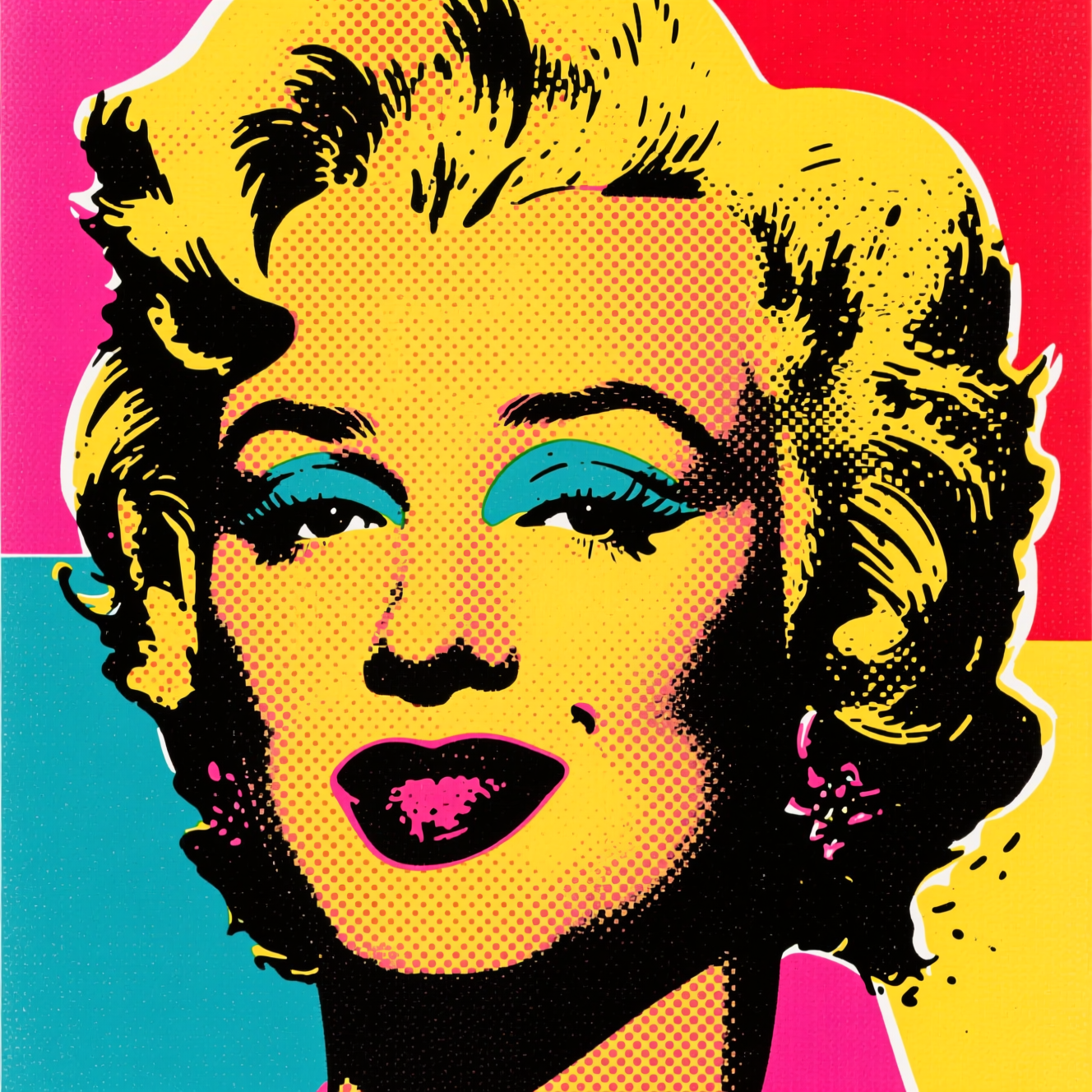 How to Turn a Photo into Pop ArtPop art is flat colour, halftone dots and a hard outline. Here is how to turn a photo into a poster in that style, and which photos suit it.
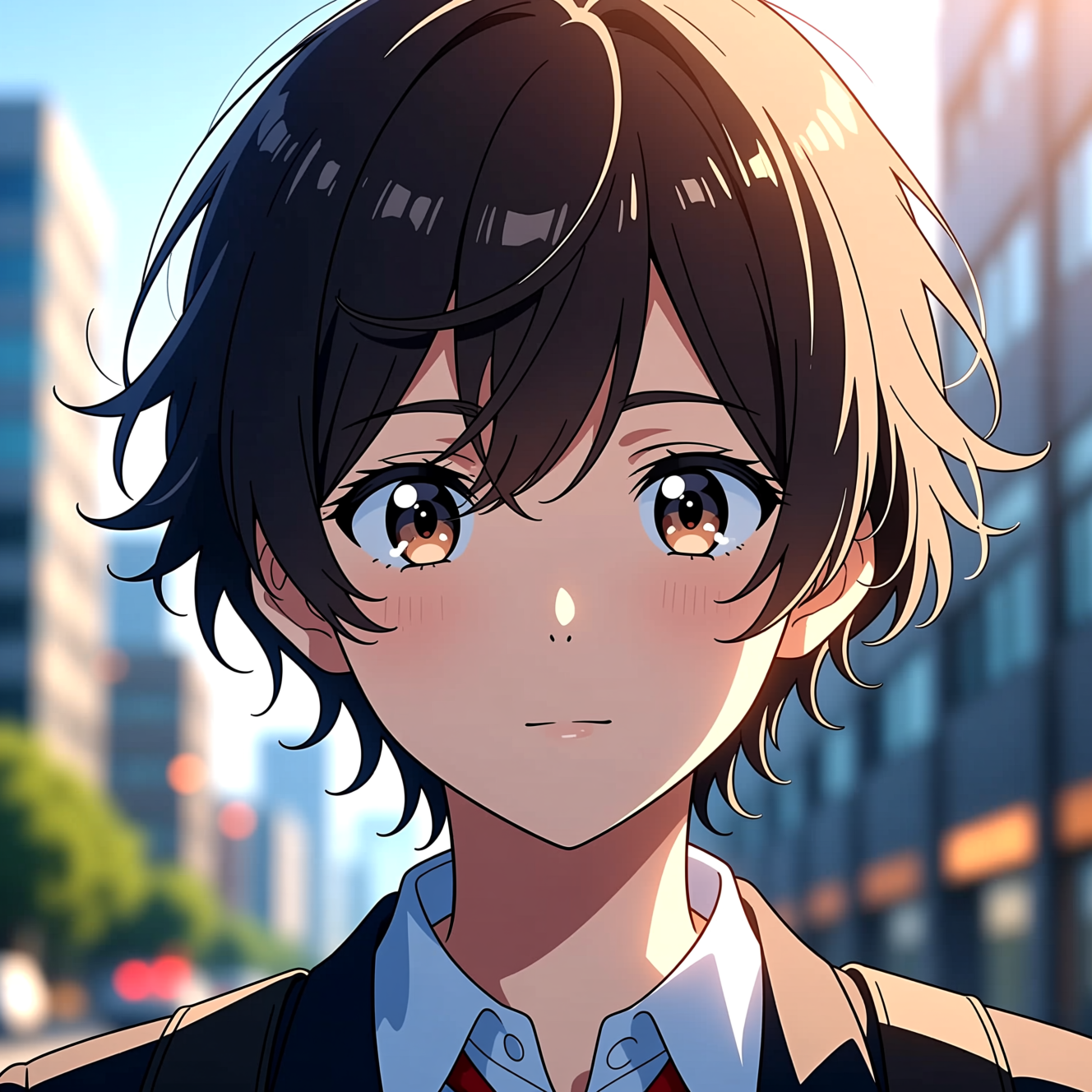 How to Turn a Photo into AnimeAnime style is drawn decisions, not a colour filter. Here is how to turn a photo into an anime portrait that is still recognisably you.