
AI Photo Restoration
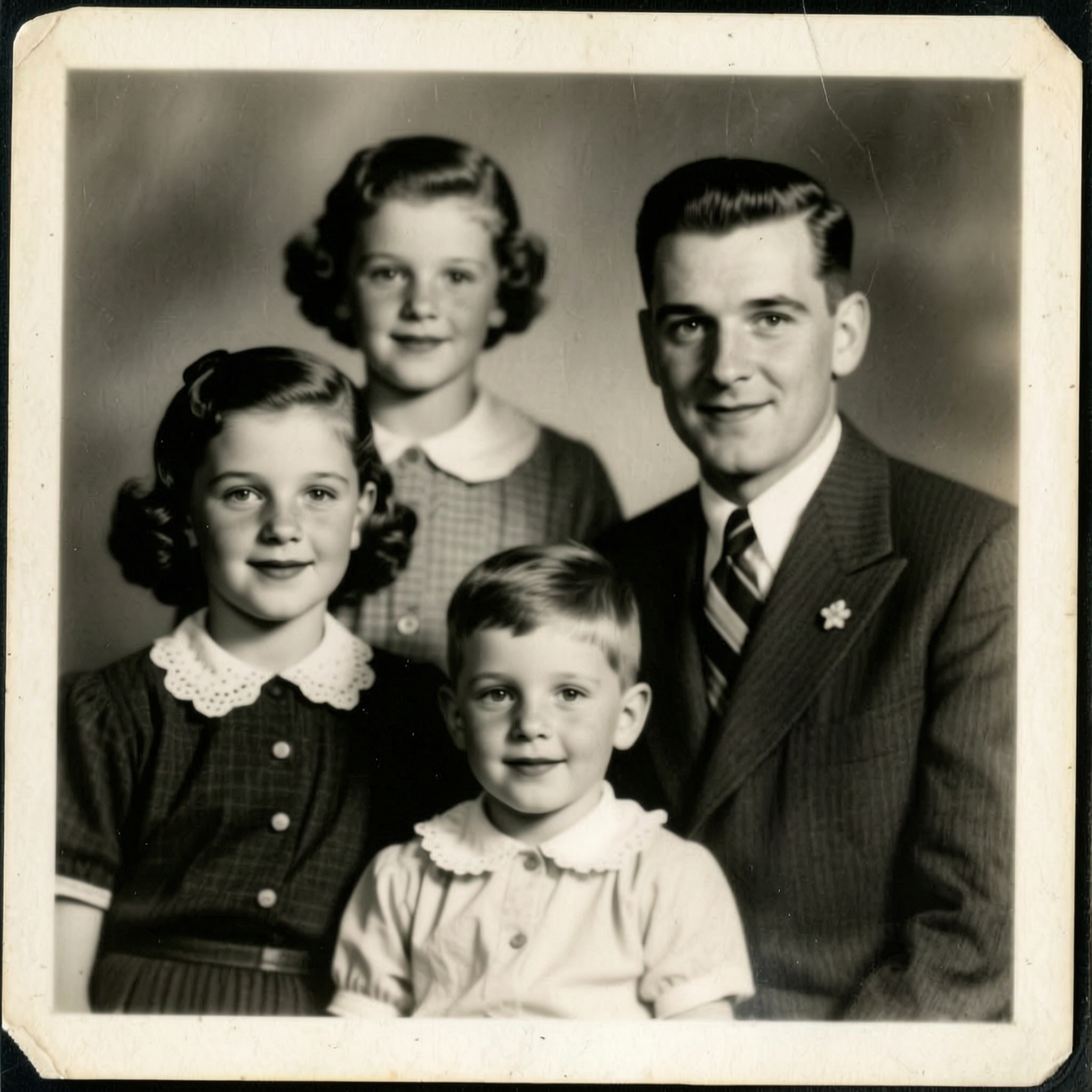
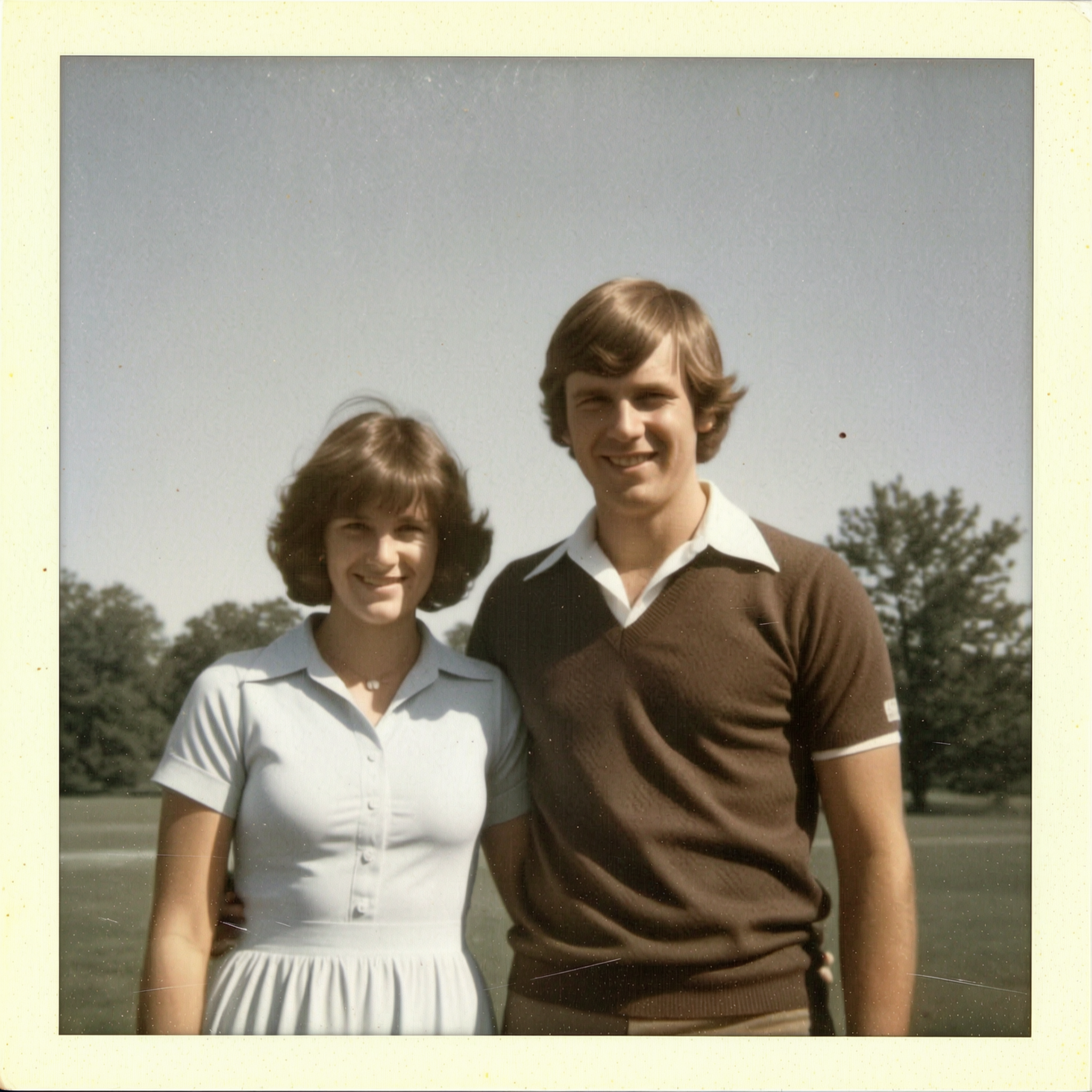
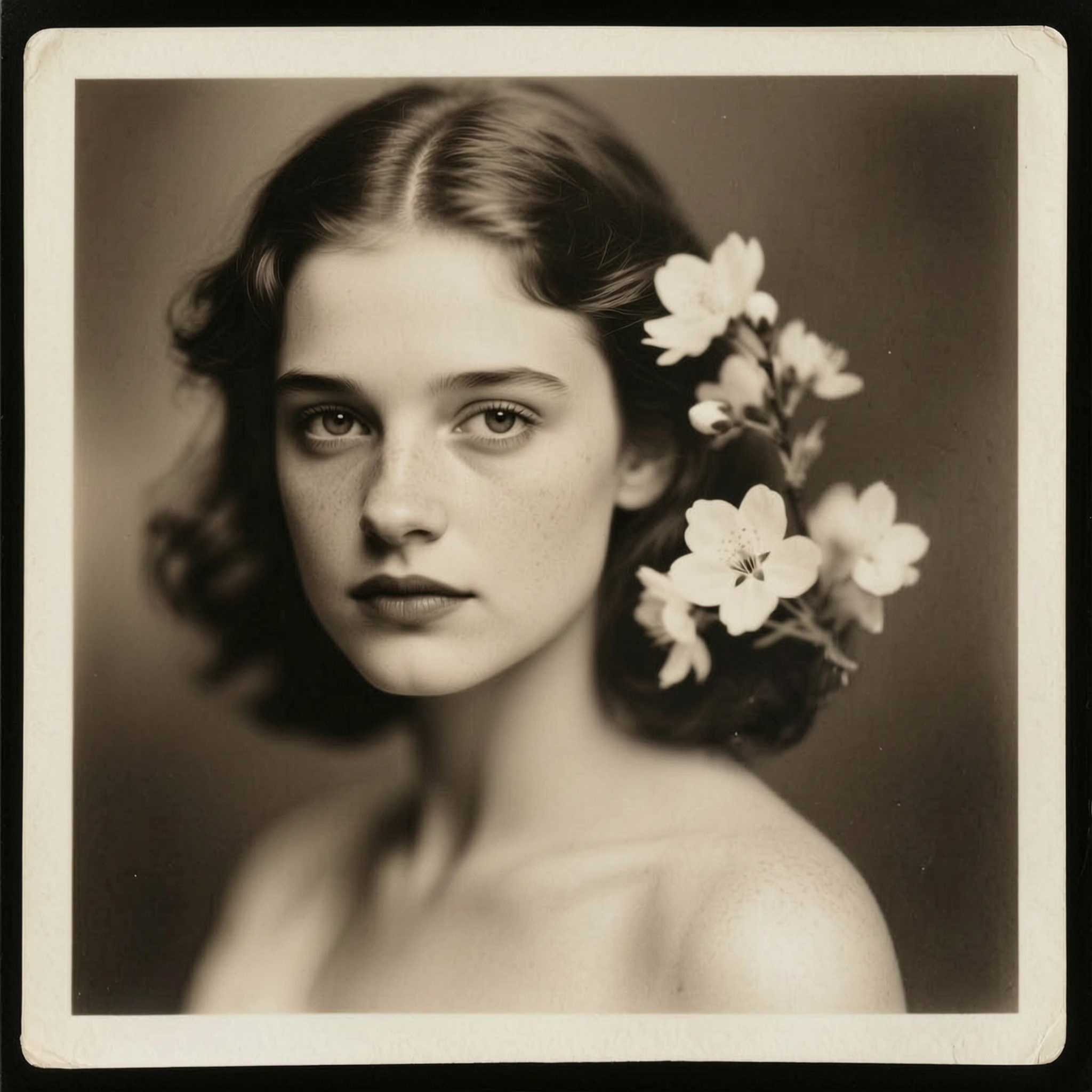
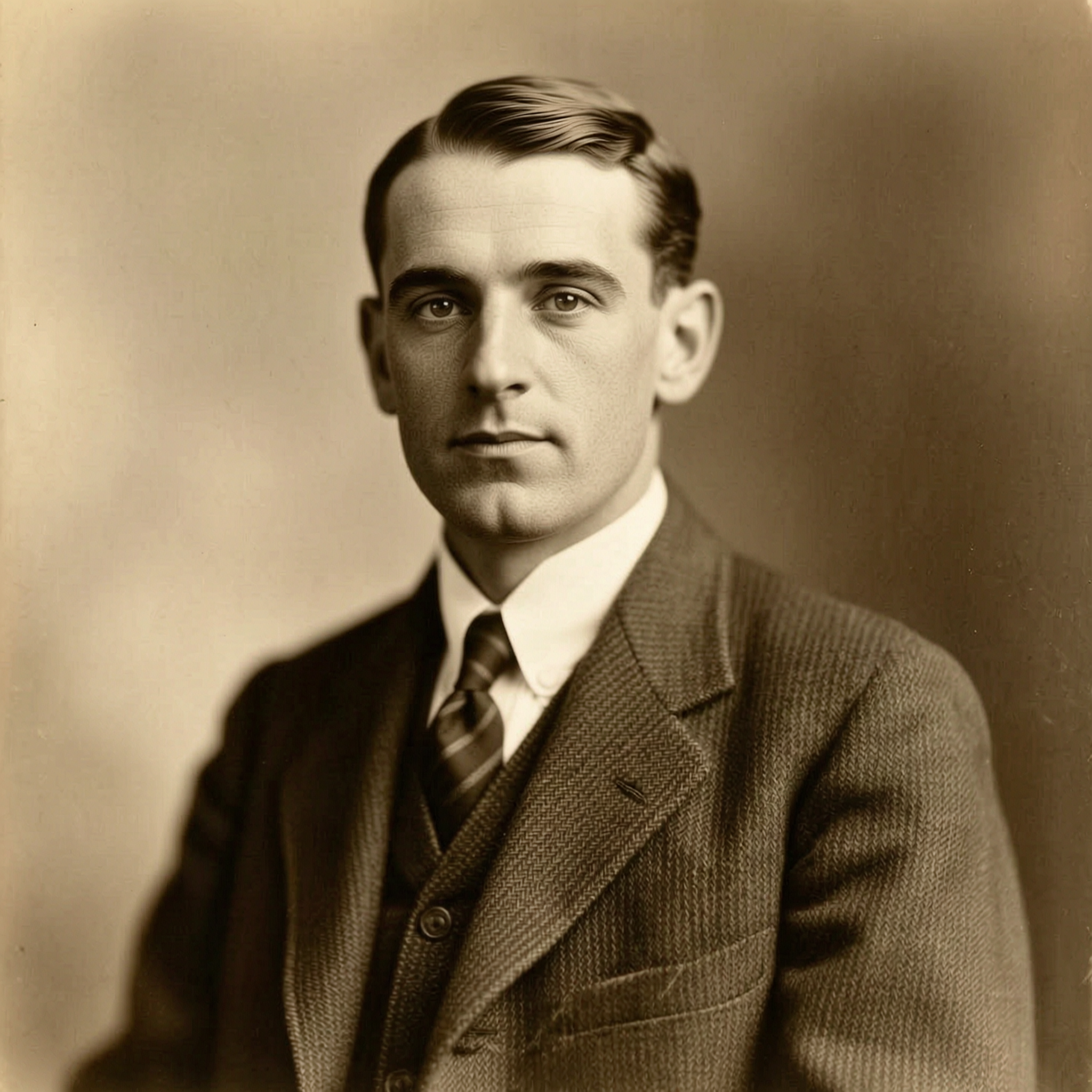
Tears, creases, water stains and fading, repaired. The photograph stays the photograph — the damage is what goes.
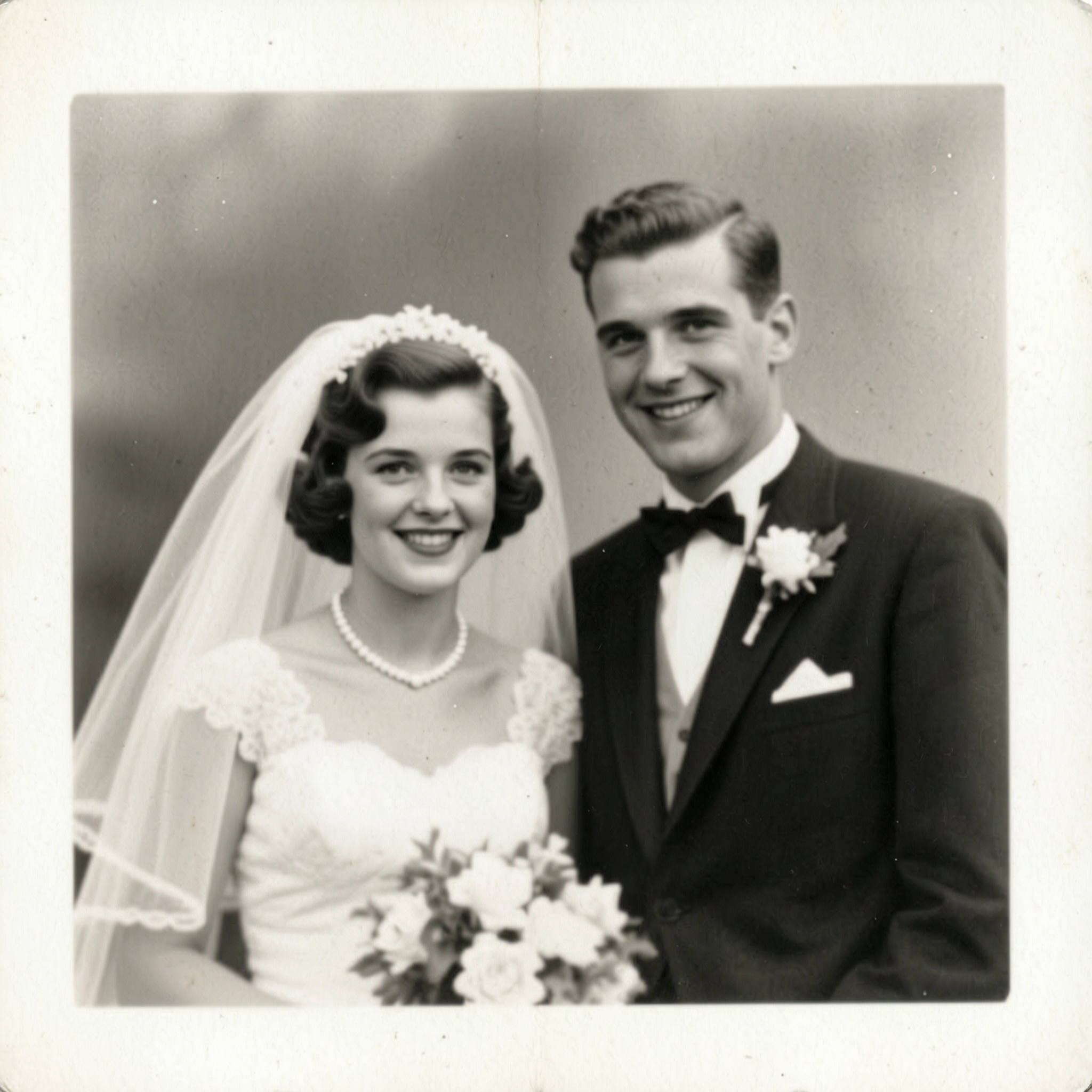
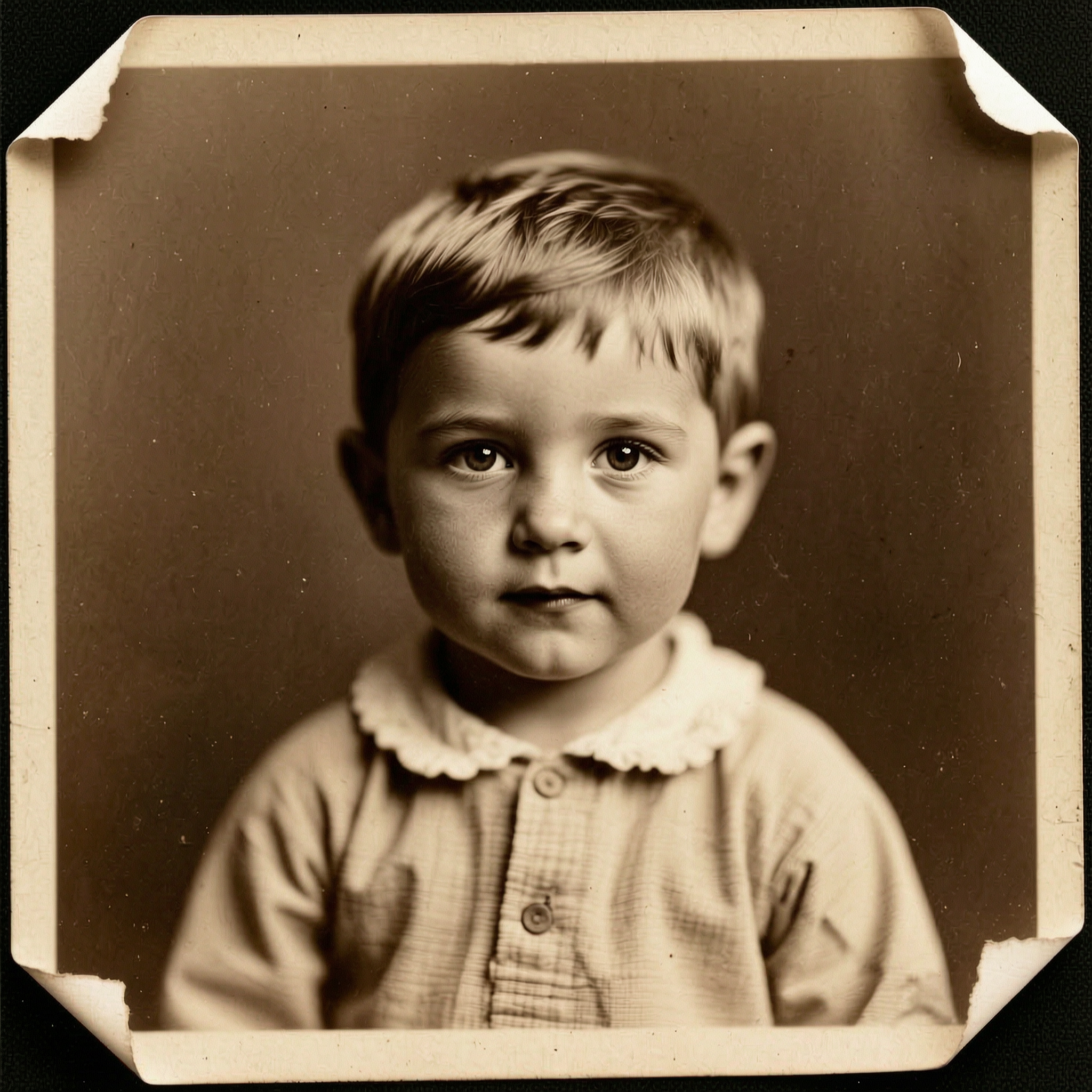
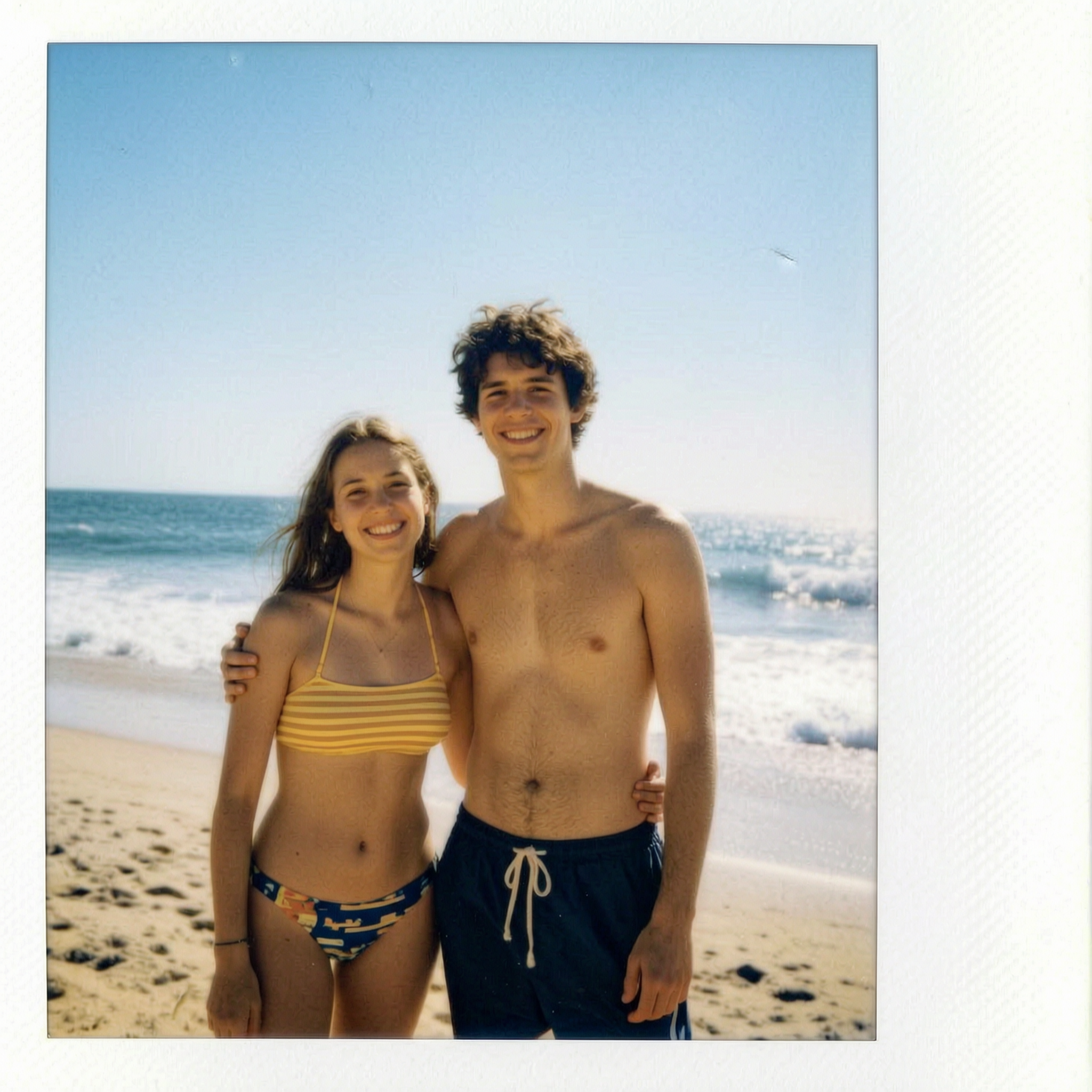
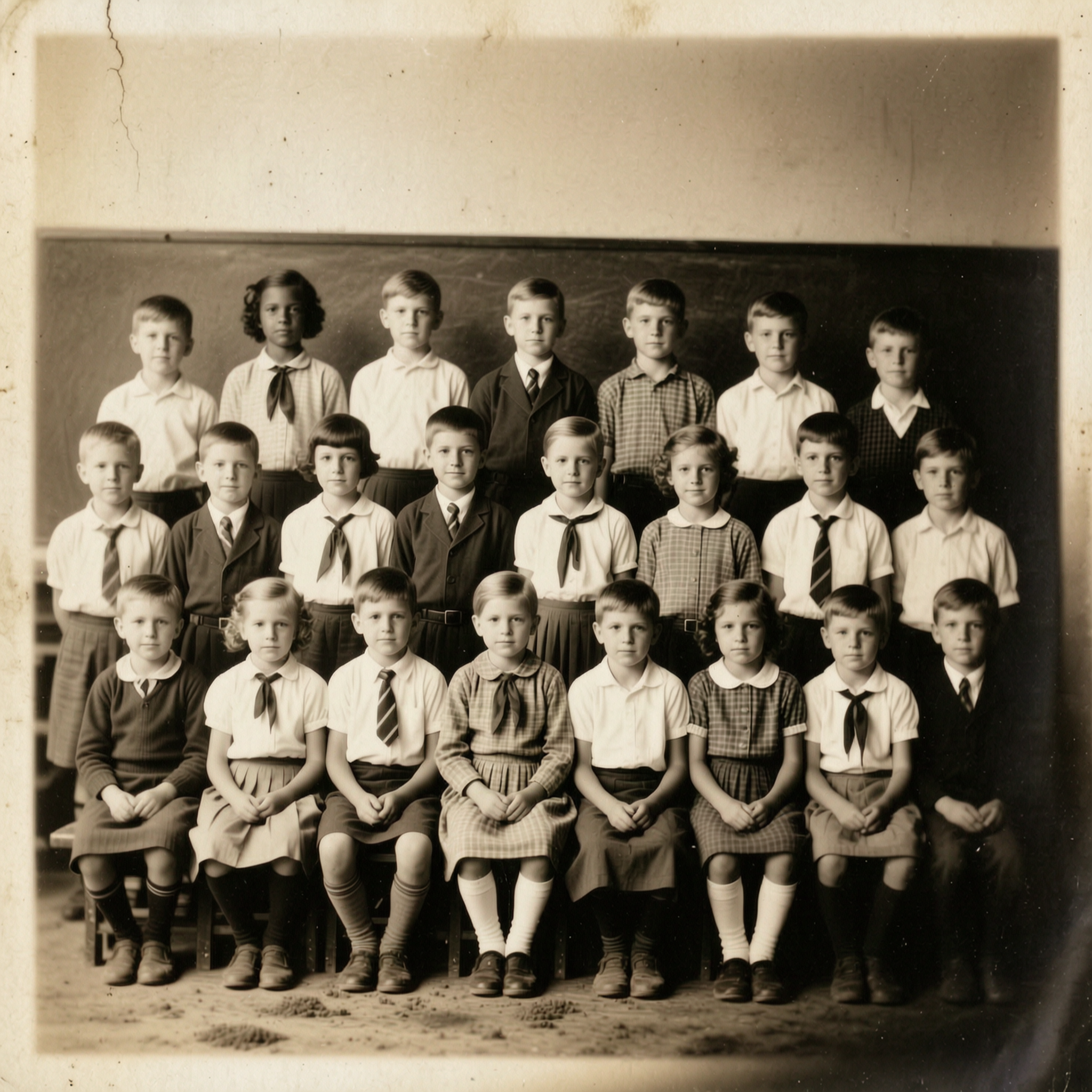
Examples made with this tool
How it works
- Step 1
Photograph or scan the original
Flat, evenly lit, filling the frame, no glare. A scan is better than a phone photo, but a careful phone photo in daylight is most of the way there.
- Step 2
Let it repair the damage
Tears, creases, scratches, spotting, water stains and fading, in about a minute.
- Step 3
Keep both copies
The result comes back high resolution and unwatermarked. Keep the original scan too — it is the only record of what was actually on the paper.
Frequently asked questions
- How do I restore an old photo with AI?
- Photograph or scan the print as flatly and evenly as you can, upload it, and the AI repairs the physical damage — tears, creases, scratches, spotting — and recovers the contrast the print has lost.
- Does it change what is in the photo?
- It is instructed not to. The prompt repairs damage and recovers contrast and is told explicitly to leave every face, garment and background element as photographed. That distinction matters more here than anywhere else on this site: a restoration that redraws a grandmother's face has not restored anything.
- Should I trust every detail of the result?
- Treat it as a repaired print, not as evidence. Where the paper was destroyed the model is filling a gap, and a filled gap is a plausible guess rather than a record. Keep the original scan alongside it — for anything genealogical or legal, the scan is the document.
- What kind of damage can it fix?
- Creases and tears, surface scratches, dust and spotting, mould, water blooming, and the overall fading and colour shift that old prints and 1970s colour film both suffer from.
- Can it colourise at the same time?
- Those are separate tools on purpose — restoring damage and adding colour are different decisions, and doing them in one pass makes it harder to see what changed. Restore first, then colourise the result if you want to.
- What does it cost?
- Each generation comes off your Reelina credit balance and the exact cost is shown before you press Generate. One balance covers every model in the workspace.
- Is it free?
- No — Reelina runs on paid credits. We show what a generation costs before you run it rather than advertising a free tier we do not have.
- What happens to my photos?
- They are used only to make your results. Creations are private by default, and everything is deleted seven days after it is generated.
Every model, one balance
No watermarks, full resolution, and every leading AI model on one credit balance — create right in your browser.
Get StartedRelated tools
Colorize Black and White Photos
Colour added to an old photograph — skin, fabric, brick and sky — with nothing in the picture moved, added or taken away.
AI Portrait Generator
Turn one photo into a styled portrait — editorial, cinematic or fashion, in about a minute.
AI Image to Video
Turn a still image into moving video. Upload a picture, choose how it should move, and get a short clip back in about a minute.
What people make with Reelina
All AI tools →- AI Aging Filter
- AI Age Progression
- AI Engagement Photos
- AI Dating Photos
- AI Fashion Model Generator
- Looking for a Remini Alternative?
- Looking for a Higgsfield Alternative?
- Looking for a Sora Alternative?
- Looking for an LTX Studio Alternative?
- Looking for a Dreamina Alternative?
- Looking for a Lensa Alternative?
- AI Dance Video Generator
- AI Image to Video
- Text to Video AI
- AI Headshot Generator
- AI Portrait Generator
- AI Hairstyle Changer
- AI Tattoo Generator
- AI Outfit Changer
- AI Maternity Photoshoot
- AI Christmas Card Generator
- AI Wedding Photo Generator
- AI Couple Photo Generator
- AI Car Photo Editor
- See Yourself Younger
- See Yourself as a Baby
- What Would Our Baby Look Like
- Caricature Maker
- Anime Filter
- Real Estate Photo Editing
- Cartoon Yourself
- Pop Art Generator
- Action Figure Generator
- Magazine Cover Generator
- AI Product Photo Generator
- AI Photo Restoration
- Colorize Black and White Photos
- Looking for a Kling AI Alternative?
- Looking for a Veo 3 Alternative?
- Looking for a PixVerse Alternative?
- Looking for a Hailuo AI Alternative?
- AI Birthday Photo
- AI Pet Portrait
- Royal Portrait Generator
- AI Selfie Generator